 Photoch
Open the editor
Remaster
Restore and colorize old photos with AI
Remaster cleans up scratches, dust, stains, creases, fading, blur and noise in old photos, and adds natural color to black-and-white ones. Scan or photograph the print, open it in Photoch and choose Restore, Colorize or both.
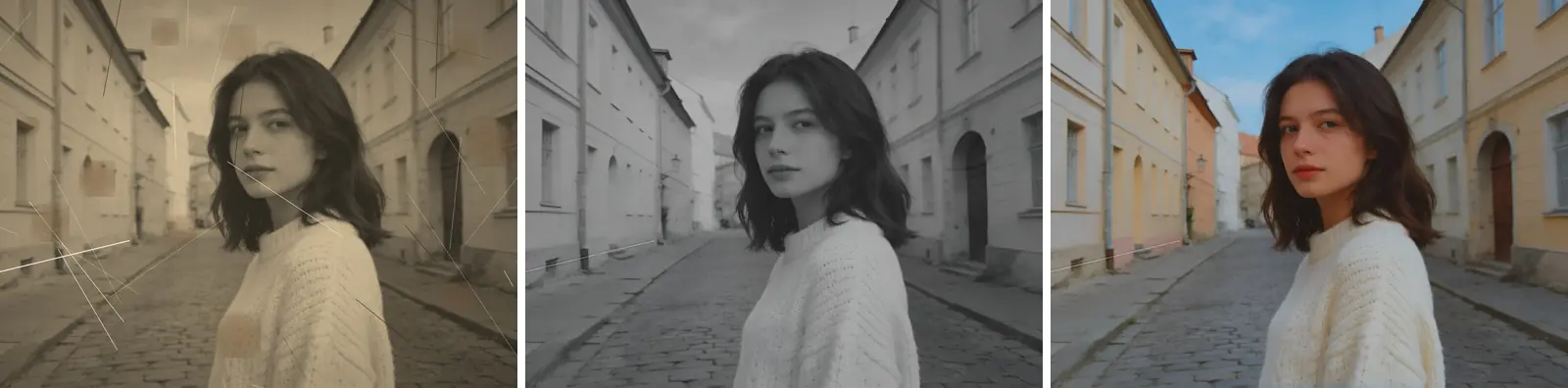
How to restore an old photo
- Digitize the print. Scan it, or photograph it lying flat in even light without glare, and crop away the edges.
- Open it in Photoch: drag it onto the page or choose File > Open.
- Open Remaster. Click Remaster in the floating bar under the canvas, or choose Edit > Remaster. On a phone, tap AI, then Remaster.
- Choose what to do: Restore, Colorize, or Restore + colorize. For a restoration, choose the strength too: Low, Medium or High.
- Click Generate, then OK. The result is a new layer above the original, so you can hide it to compare. Click Generate again for another version.
Three ways to remaster
Restore
Removes scratches, stains, creases, fading, blur and noise. Colors stay as they are.
Colorize
Adds natural color to a black-and-white photo. Your photo keeps all its own detail; only the color is new.
Restore + colorize
Fixes the damage and adds color in one pass.
Choose how much to restore
Restore has three strengths. Scratches and dust go at every level; what changes is how much of the photo's own detail is kept.
- Low: faces and features stay exactly as in your photo, grain too, while scratches, dust, stains and fading are cleaned up.
- Medium (the default): sharper and cleaner, while faces stay close to your photo.
- High: the sharpest and cleanest result, but faces may change.
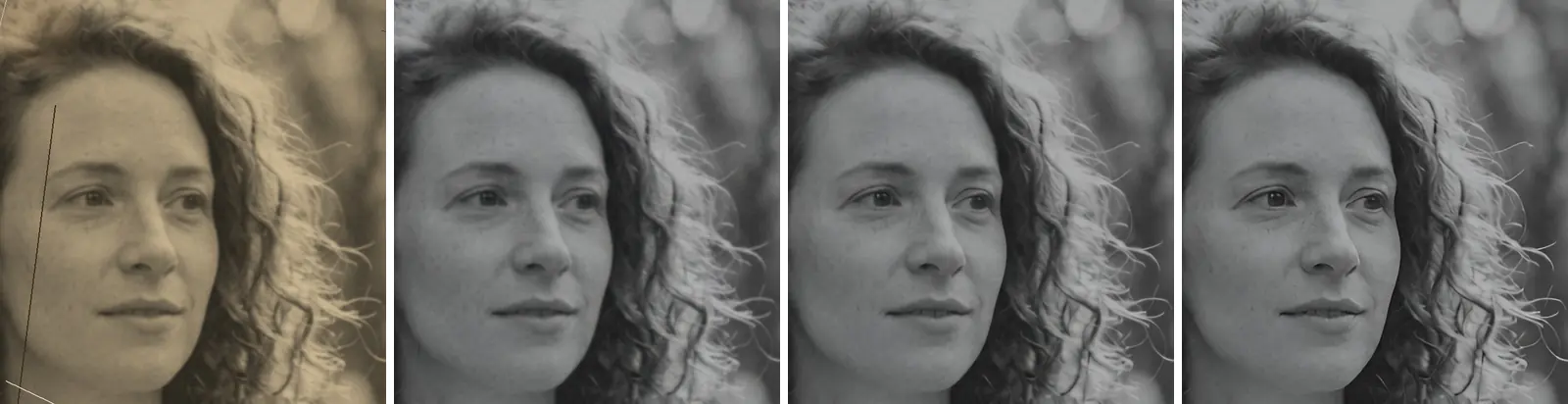
Color without redrawing
Colorize keeps the brightness of every pixel of your photo and adds only the color, so faces and fine detail aren't redrawn. After you click Generate, use Strength to make the color stronger or more muted.
Tips for better results
- Scan or photograph the print as straight and evenly lit as you can, without glare or shadows across it.
- Start at Medium. Go to Low if a face looks different, or to High if damage is left.
- Touch up what's left with the Spot Healing Brush or the Clone Stamp.
- Small scan? Enlarge the result with the AI image upscaler.
Questions
Is restoring a photo free?
Yes. You get free generations every day without an account, and twice as many when you sign in. Each Generate counts as one, and the allowance starts again at midnight UTC.
Will the faces in my photo change?
At Low, faces and features stay exactly as in your photo. Medium keeps them close; High gives the cleanest result, but faces may change. Colorize never redraws your photo; it only adds color.
Can I colorize a black-and-white photo without restoring it?
Yes. Choose Colorize. Your photo keeps all its own detail and only the color is new; Strength makes the color stronger or more muted.
How do I get an old print into Photoch?
Scan it, or photograph it lying flat in even light without glare, and open the file in Photoch. Crop away the edges of the print before you restore it.
What happens to my photo?
A copy of the layer, made smaller if it's large, is sent to Photoch's AI server, processed in memory and deleted as soon as the result is back. It isn't stored or used for training. See the privacy policy.
More AI tools
AI image upscaler
Enlarge a photo 2× or 4× with sharp detail instead of blur. Upscale an image
Change lighting
Relight a photo as a sunset, a studio portrait, a neon night and more. Change the lighting
Replace background
Put the person or product somewhere new, lit to match the scene. Change a background
AI photo styles
Become a samurai, a superhero or your older self, or redraw a photo as anime or an oil painting. Try a style
Bring an old photo back to life
Free, in your browser, with nothing to install.