 Photoch
Open the editor
AI Upscale
Upscale images with AI, 2× or 4×
AI Upscale enlarges a photo and fills in sharp detail where an ordinary resize would only blur it. Choose 2× or 4×, and Photoch enlarges the whole image in one step that you can undo.
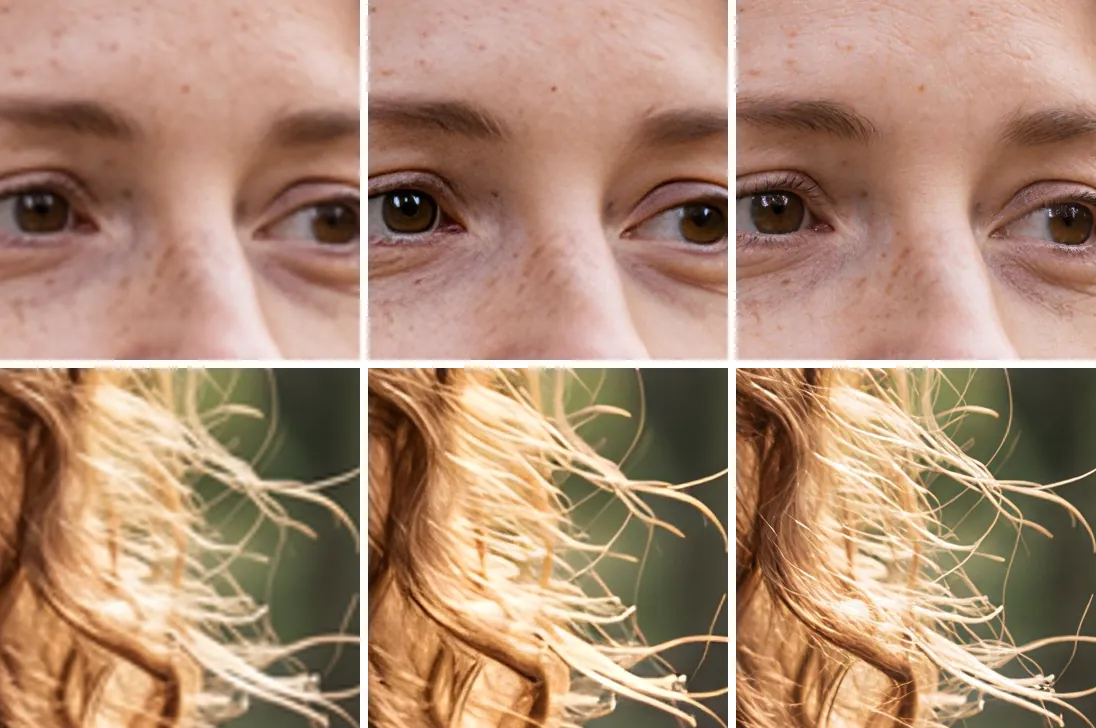
How to upscale an image
- Open the image in Photoch: drag it onto the page or choose File > Open.
- Open AI Upscale. Choose Image > AI Upscale, or click AI upscale in the floating bar under the canvas. On a phone, tap AI, then AI upscale.
- Choose 2× or 4×. The dialog shows the new size in pixels before you start.
- Choose the quality, if the dialog offers a choice: Standard, or High quality for pictures up to 1024 px on the long side.
- Click Upscale. The image grows to the new size, and the AI result goes on a new layer above the original.
Standard or High quality
Standard
Quick, with sharp edges and clean detail. Works on any picture, with results up to 4096 px on the long side.
High quality
For small pictures, up to 1024 px on the long side. Adds realistic fine detail like skin, hair, fabric and lettering, and takes about 15 to 30 seconds. It can invent detail in faces and small text, so check them.
One step, easy to undo
AI Upscale enlarges the whole document, not only one layer: every layer, mask and selection is scaled to the new size, and the AI result is added as a new layer named after the original with "-upscaled" at the end. Press Ctrl+Z and everything goes back to how it was.
Good to know
- Results go up to 4096 px on the long side. If 4× would be bigger, Photoch enlarges as far as it can; the dialog shows the size.
- Very large layers are reduced to the AI server's limit before upscaling. The dialog tells you when this happens.
- Cut-outs keep their transparency.
- Each upscale counts as one generation in your daily allowance.
- Restoring an old photo? Run Remaster first, then upscale the result.
Questions
Is the AI upscaler free?
Yes. Each upscale counts as one generation in your free daily allowance, which doubles when you sign in and starts again at midnight UTC. There's no watermark.
How big can the result be?
Up to 4096 px on the long side. If 2× or 4× would be bigger than that, Photoch enlarges the image as far as it can, and the dialog shows the size before you start.
What's the difference between Standard and High quality?
Standard is quick and gives sharp edges and clean detail on any picture. High quality is for small pictures, up to 1024 px on the long side: it adds realistic fine detail like skin, hair, fabric and lettering, and takes about 15 to 30 seconds. It can invent detail in faces and small text, so check them.
Does it work on transparent images?
Yes. A cut-out keeps its transparency when you upscale it, so you can still export it as a transparent PNG.
What happens to my photo?
A copy of the layer is sent to Photoch's AI server, processed in memory and deleted as soon as the result is back. It isn't stored or used for training. See the privacy policy.
More AI tools
Restore old photos
Clean up scratches and fading, and colorize black-and-white photos. Restore a photo
Change lighting
Relight a photo as a sunset, a studio portrait, a neon night and more. Change the lighting
Replace background
Put the person or product somewhere new, lit to match the scene. Change a background
AI photo styles
Become a samurai, a superhero or your older self, or redraw a photo as anime or an oil painting. Try a style
Upscale your own image
Free, in your browser, with nothing to install.