 Photoch
Open the editor
Change Lighting
Change the lighting of any photo with AI
Turn a flat daytime shot into a golden sunset, a studio portrait or a neon-lit night. Pick one of 12 looks or describe the light you want, and Photoch relights your photo on a new layer while keeping its detail.

How to change the lighting of a photo
- Open a photo in Photoch: drag it onto the page or choose File > Open.
- Open Change Lighting. Click Change lighting in the floating bar under the canvas, or choose Edit > Change Lighting. On a phone, tap AI, then Change lighting.
- Pick a look. For Sunset, Studio, Sunbeams, Moonlight and Sunrise, choose whether the light comes from the left or the right. For Neon night, choose the side for the pink light.
- Click Generate. Click Generate again for another version, and use the arrows to compare them.
- Set the strength and click OK. Strength blends the new light with your photo. The result is a new layer above it.
Because the new lighting is a layer, you can lower its opacity, add a mask to paint parts of it away, or delete it. Undo works too.
12 looks to choose from
Every example below was made by Photoch from the same photo, with the light from the left where a look has a direction.
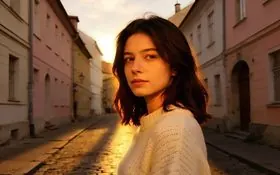
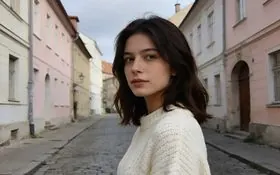
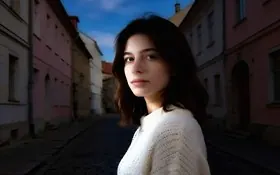
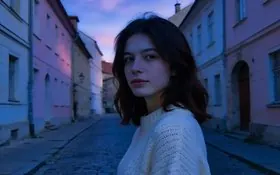
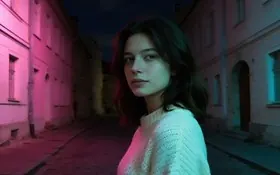
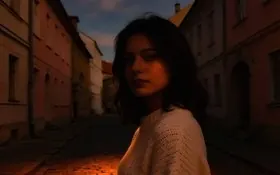
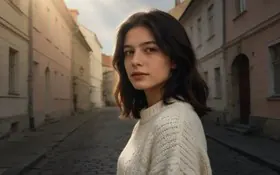
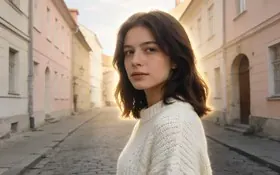
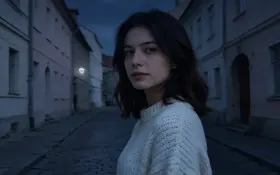
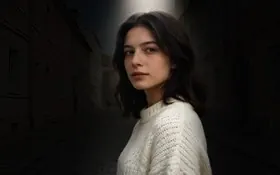

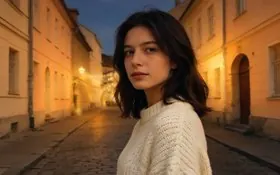
Describe your own light
Want something that isn't in the list? Click Write your own and describe the light: "warm light from a fireplace on the right", "red and blue police lights" or "soft window light from the left". Photoch relights the photo to match.
It works the same on a phone, where Change Lighting opens as a sheet under your photo.
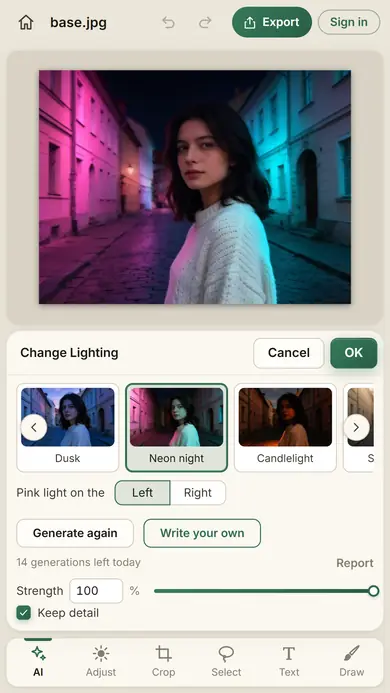
Your photo keeps its detail
Keep detail is on by default. Photoch keeps the full sharpness of your photo, even when the AI works on a smaller copy, and takes only the light from the result. New hard shadows come out softer and light sources inside the photo weaker, so turn Keep detail off for very dramatic looks.
Tips for better results
- Select part of the photo first to relight only that part. The new layer is masked to your selection.
- Relighting a cut-out? The new layer keeps the layer's mask, so it stays cut out.
- Lower Strength for a subtle change, or keep it at 100% for the full look.
- Generate again if the result isn't quite right. Every result is different.
- Moving the subject somewhere new? Replace Background lights it to match the new scene.
Questions
Is Change Lighting free?
Yes. You get free generations every day without an account, and twice as many when you sign in. Each Generate counts as one, and the allowance starts again at midnight UTC.
Can I choose where the light comes from?
Yes. For Sunset, Studio, Sunbeams, Moonlight and Sunrise, choose Left or Right; for Neon night, choose the side of the pink light. When you describe your own light, say where it comes from, like "soft window light from the left".
Will it change the details of my photo?
Not with Keep detail on, which is the default: Photoch keeps your photo's own detail and takes only the light from the AI result. Turn it off for very dramatic looks; you then get the AI's picture as it is, and small details can change.
Can I relight only part of a photo?
Yes. Select that part first, for example with Select > Subject, then open Change Lighting. The new layer is masked to your selection.
What happens to my photo?
A copy of the layer, made smaller, is sent to Photoch's AI server, processed in memory and deleted as soon as the result is back. It isn't stored or used for training. See the privacy policy.
More AI tools
Replace background
Put the person or product somewhere new, lit to match the scene. Change a background
AI photo styles
Become a samurai, a superhero or your older self, or redraw a photo as anime or an oil painting. Try a style
Restore old photos
Clean up scratches and fading, and colorize black-and-white photos. Restore a photo
AI image upscaler
Enlarge a photo 2× or 4× with sharp detail instead of blur. Upscale an image
Relight your own photo
Free, in your browser, with nothing to install.