 Photoch
Open the editor
Photoch
Open the editor
Generative Fill
AI Generative Fill, free in your browser
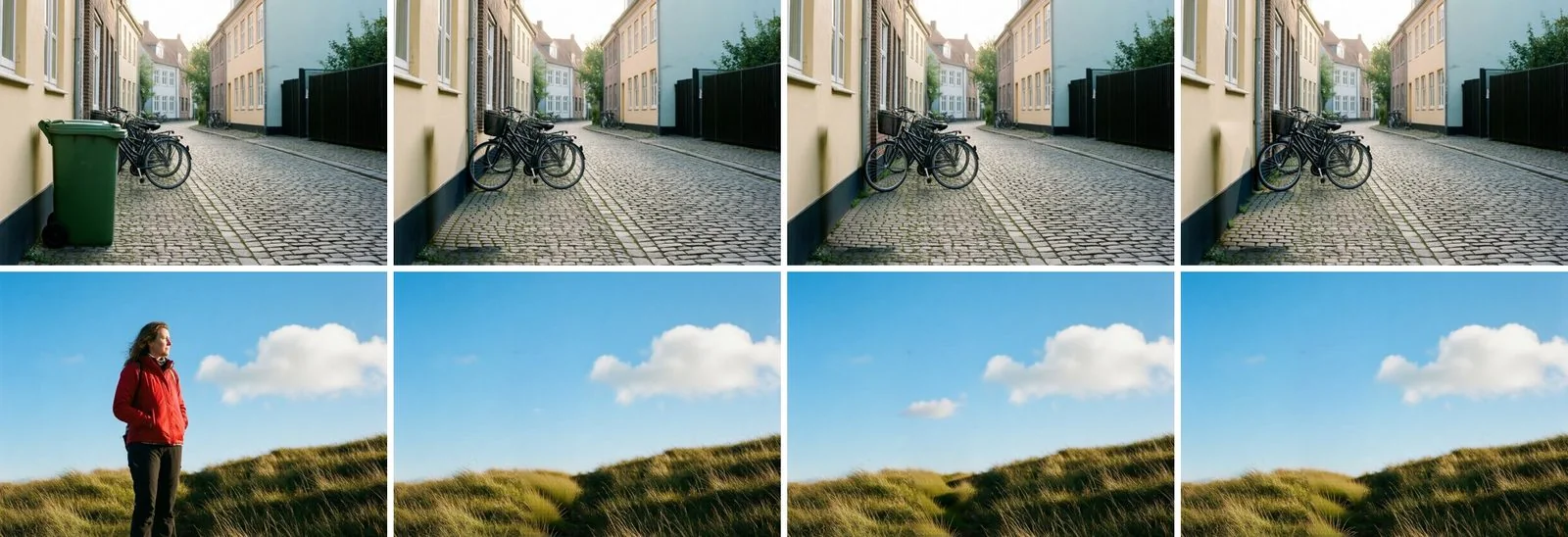
Select part of a photo and describe what should be there. Photoch's AI paints it in to match the light and perspective, and gives you three variations to choose from. Leave the prompt empty to remove what you selected.

How to use Generative Fill
- Open a photo in Photoch: drag it onto the page or choose File > Open.
- Select an area with the Lasso or the Rectangular Marquee. Include a little of the surroundings so the result blends in.
- Open Generative Fill. Click Generative fill in the floating bar, or choose Edit > Generative Fill (Shift+Ctrl+P).
- Describe what to add, like "a wooden bench" or "snowy mountains", and click Generate. Leave it empty to remove what's there.
- Pick a variation. Click the thumbnails to compare them. Click Generate again for three more; the earlier ones stay so you can compare them all.
The result is a new layer with a mask, so you can move it, paint parts away, adjust its colors or delete it.
Remove objects from photos
Bins, signs, wires, tourists, photobombers: select them, leave the prompt empty and click Generate. Photoch fills the area with what would be behind them, and you get three versions to choose from.
Select anything by name
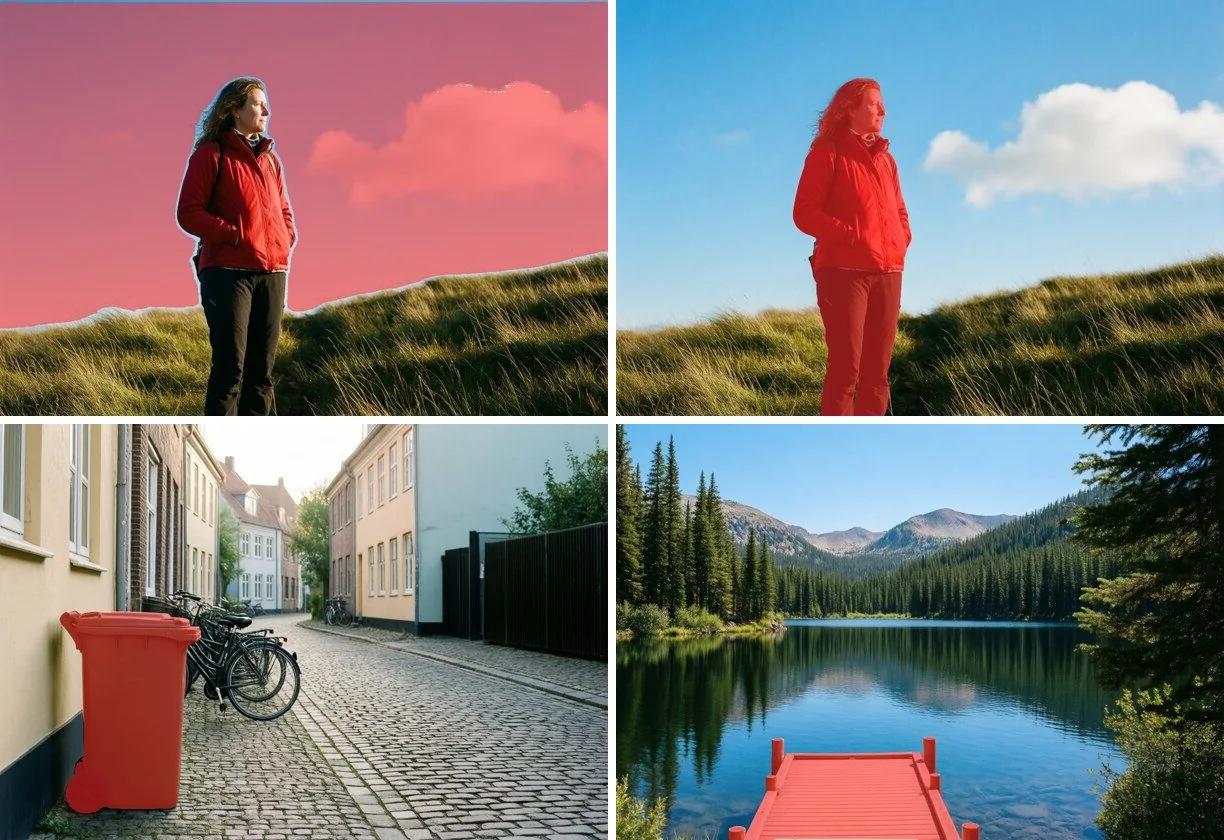
Start the prompt with "select" and Photoch makes a selection instead: "select the sky", "select the dog", "select the car on the left". Use it to change the sky, mask a subject or apply an adjustment to just one part of the photo.
For a cutout of the main subject, see remove background.
Tips for better results
- Describe the thing, not the edit: "a red sailboat", not "add a red sailboat here".
- Make the selection about the size and shape of what you want.
- For removals, select a little beyond the object's outline, including its shadow.
- Generate again if none of the variations is right. Every set is different.
- Blend the result with the layer's mask, or with an adjustment layer clipped to it.
Questions
Is Generative Fill free?
Yes. You get free generations every day without an account, and twice as many when you sign in. The allowance starts again at midnight UTC.
How do I remove an object from a photo?
Select the object with the Lasso or a marquee tool, open Generative Fill, leave the prompt empty and click Generate. Photoch fills the area with what would be behind it.
Can I undo a generation?
Yes. Each result is a new layer with a mask, so you can hide, mask, adjust or delete it, or press Ctrl+Z to undo.
What happens to my photo?
The selected part of the image and your prompt are sent to Photoch's AI server, processed in memory and deleted as soon as the result is back. They aren't stored or used for training. See the privacy policy.
Try Generative Fill on your own photo
Free, in your browser, with nothing to install.